Choosing a Document Scanner for Home and Office Records
 Anjali Deshpande10 min read
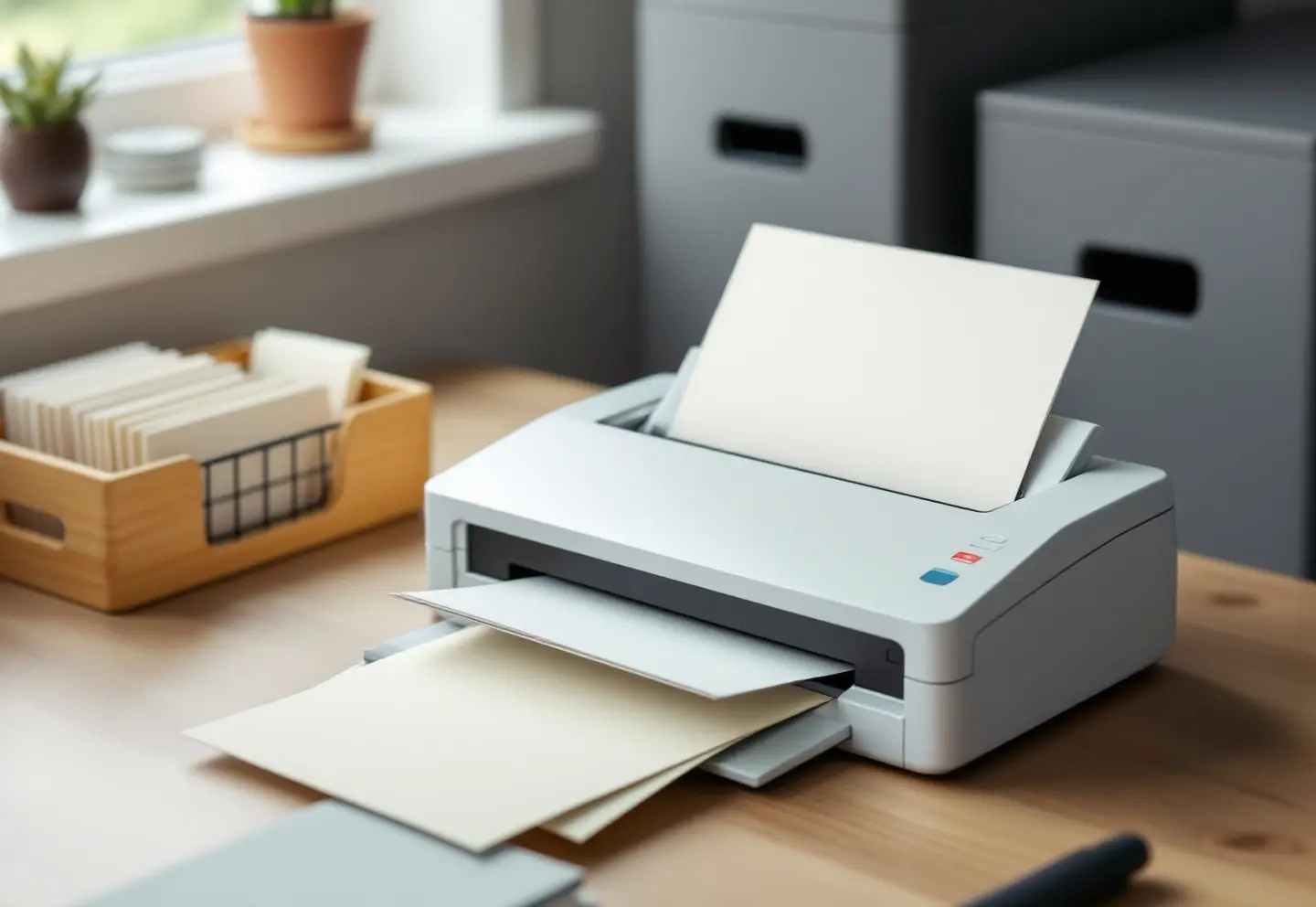
For most home and small-office paper, the document scanner to get is a compact desktop model with an automatic feeder that scans both sides of each sheet in one pass and saves searchable PDFs. A portable document scanner makes sense if you scan receipts and forms away from a desk. A larger Wi-Fi sheet-fed scanner earns its space when several people share it or there are boxes of backlog to clear. Anything bound, brittle or historic belongs under an overhead camera-style scanner or on a flatbed, never through rollers. The rest of this guide matches machines to paper and goes through the specifications that actually change your day.
What a document scanner is, and what it is not
A document scanner is a sheet-fed machine. You load a stack, it pulls the pages through one at a time past two sensors, one for each side, and it hands you a multi-page file. That makes it fast and tidy for modern office paper. It also means rollers touch every page, which is fine for a utility bill and wrong for a letter from 1890 or a register with a cracked spine.
A flatbed works the other way round: the page sits still on glass and the sensor moves under it. It is slow for a stack but safe for anything fragile, and it handles photographs properly. If your pile is mostly family pictures, our guide to photo scanners for old photos covers the right machines for that job.
Which type fits which paper
| Job | Typical paper | Scanner type |
|---|---|---|
| Monthly bills, statements and receipts | Letter-size sheets, thin thermal receipts, small slips | Compact duplex desktop scanner |
| Tax-year paperwork and household files | Mixed sizes, staples, sticky notes, the odd card | Compact or sheet-fed desktop scanner with a carrier sheet |
| A small office's active files and backlog | Boxes of letter and legal paper | Sheet-fed desktop scanner with a large feeder and Wi-Fi |
| Receipts and forms on the road or at a client's office | Single sheets, receipts, business cards | Portable single-sheet document scanner |
| Bound ledgers, minute books, scrapbooks, fragile letters | Bound, brittle, folded or oversized | Overhead camera-style scanner, or a flatbed |
Most homes need only the first row. A two-person office often needs the first or third. The portable and overhead types are specialists, and it is better to admit you need one than to force the wrong paper through the wrong machine.
Receipt scanners are mostly software
People search for a receipt scanner as if it were its own kind of hardware. In practice it is a compact or portable document scanner paired with software that reads the merchant, date and total from each image and files the result, often exporting to a spreadsheet or to accounting software. A phone app does the same for a handful of receipts a month. A scanner pays off when the receipts come by the dozen each week.
What the hardware needs for receipts:
- A small enough minimum document size for short slips, or a carrier sheet to feed them in
- A long-document mode if you keep long register tapes
- A feeder that handles thin paper without double-feeding
- Software that can export to CSV or to the accounting program you already use
Scan thermal receipts soon after you get them. Thermal paper darkens or fades with heat and light, and contact with vinyl sleeves and some plastics speeds the fading. A receipt carried in a wallet for a few months can be hard to read by tax time.
What matters in the specs
Spec sheets are long, and most of the numbers on them are measured under ideal conditions: clean new paper, one size, standard settings. Judging from the specifications you can compare models fairly, but expect real throughput to be lower once staples, mixed sizes and preparation come in.
| Feature | Why it matters | What to look for |
|---|---|---|
| Single-pass duplex | Two sensors scan both sides at once, so a two-sided stack takes one pass and no flipping | True single-pass duplex, not "manual duplex" |
| Feeder capacity | How many sheets you can load before you have to stand there feeding | About 20 sheets for light home use; 50 to 100 for an office backlog |
| Rated speed | Pages or images per minute at a stated setting | Compare models at the same resolution, usually 300 dpi; "images per minute" counts both sides |
| Daily duty cycle | The maker's recommended daily volume; running far above it wears rollers early | A figure comfortably above your real daily volume |
| Double-feed detection | Ultrasonic sensors catch two sheets pulled together, so a page is not silently skipped | Ultrasonic multi-feed detection |
| Paper range | Decides whether receipts, thin paper, card stock and plastic cards will feed | Stated minimum size, paper weight range, long-document mode, card support |
| Carrier sheet | A clear sleeve that carries torn, creased or odd-shaped items through the feeder | Included, or sold for the model |
| Optical resolution | Text is sharp at 300 dpi; small or faint type and OCR on poor originals benefit from 400 | 600 dpi optical is common and more than enough for documents |
| OCR and output | Searchable PDF makes files findable; PDF/A is meant for long-term keeping | Searchable PDF and PDF/A output, plus TIFF or PNG for master images |
| Drivers and connection | A standard driver lets other programs use the scanner; app-only models depend on the maker keeping that app alive | A TWAIN driver, current operating system support, USB at least, Wi-Fi or Ethernet for shared use |
| Consumables | Pick and separation rollers wear out after a stated number of scans | Replacement roller kits sold for the model, with a rated life |
Two lines in that table get skipped most often. Double-feed detection is the difference between a 40-page contract and a 39-page contract that nobody notices is short until it matters. And the driver question decides whether the scanner still works in five years, after an operating system update, or whether it becomes a paperweight because the one app it relied on was retired.
Settings that keep records readable
Pick settings once, write them on a card taped to the scanner and stick with them.
- Resolution: 300 dpi is the usual baseline for office records. Use 400 dpi for small print, faint carbon copies and pencil. Higher settings mostly make larger files.
- Color: use grayscale or color for anything with stamps, signatures, highlighting, colored forms or faded ink. Pure black-and-white mode suits only crisp, modern printouts, and it can drop light pencil and colored stamps altogether.
- Blank-page removal: handy for two-sided stacks, but check a few batches, because a page with only a faint pencil note can be judged blank and discarded.
- OCR: turn it on for searchable PDFs, and spot-check numbers on anything financial. OCR is very good on clean print and much less reliable on handwriting, carbons and poor photocopies.
- Format: searchable PDF for everyday files, and PDF/A (ISO 19005) for records you expect to keep for many years, since it embeds fonts and leaves out features that age badly.
The kit
These four types cover home and office paper from receipts to bound volumes. Most readers need one of the first two. The compact duplex desktop scanner suits a household or a single desk. The sheet-fed Wi-Fi model is the office workhorse for shared use and backlogs. The portable single-sheet scanner is for receipts and forms on the road, and the overhead camera-style scanner is for bound, fragile and thick items that must not go through a feeder. Our earlier piece on scanning bound volumes without breaking them explains when an overhead setup is worth it.
A routine that keeps up with the mail
Scanners are fast. The paper preparation is slow, and it is where most of the time goes.
- Prepare the stack. Remove staples, paper clips and sticky notes, unfold the creases, set aside anything torn for the carrier sheet, and square the edges so the feeder picks one sheet at a time.
- Batch by size and weight. Letter paper in one batch, receipts in another, card stock on its own.
- Name files so they sort by date. A hypothetical pattern:
2025-03-14_water-utility_bill.pdf, with the date the document was issued, then the source, then the document type. - File into folders that mirror how long you keep things, such as tax years, property, insurance, medical and household, so that disposal later is a matter of deleting one folder.
- Decide how long to keep each kind of record. The how long to keep records tool sets out the IRS guidance on tax records alongside household papers.
- Back up the scans. Three copies on at least two kinds of storage, one away from the building, is the usual rule.
Keep the original, or shred it?
Scanning a document does not always mean you can throw the paper away. Keep the originals of birth, marriage and death certificates, passports, Social Security cards, property deeds, vehicle titles, original wills and trusts, paper stock or bond certificates, and anything notarized or bearing a raised seal. For tax records, the IRS has published requirements for electronic storage systems (Revenue Procedure 97-22), so check with your tax preparer before you rely on scans alone.
For everything else, once the scan is checked and backed up and the paper has no further use, shred it. A cross-cut home shredder suits ordinary household paperwork, and our guide to paper shredder security levels explains when it is worth stepping up to micro-cut.
Care and troubleshooting
| Symptom | Likely cause | What to do |
|---|---|---|
| Thin vertical line in the same place on every page | Dust, toner or a speck of correction fluid on the sensor glass | Open the scanner and wipe both glass strips with a dry, lint-free cloth |
| Frequent misfeeds or skewed pages | Dirty or worn pick roller | Clean the rollers as the manual describes; replace them when cleaning no longer helps |
| Two pages pulled at once | Worn separation pad or roller, or sheets stuck together | Fan the stack before loading; replace the separation part |
| Double-feed alarm on single sheets | Sticky notes, labels or envelopes with windows | Remove the attachments, or turn detection off for that one batch only |
| Scans much slower than the rated speed | High resolution, color plus OCR, or a slow connection | Check settings against the rated conditions; use USB for big batches |
Clean the rollers on the schedule the maker gives, using the cleaning method in the manual, since some roller materials do not tolerate every solvent. For the glass, a lint-free microfiber cloth kept in a drawer next to the scanner does the job, with any cleaner sprayed onto the cloth rather than the glass. Keep a dust cover on the scanner when it is idle, and install driver and firmware updates when the maker releases them.
Frequently asked questions
What is the best document scanner for a home office?
For most home offices, a compact desktop scanner with single-pass duplex scanning, a feeder of about 20 sheets, ultrasonic double-feed detection and a standard driver. It handles bills, statements, forms and receipts, and it fits on a desk.
Do I need a dedicated receipt scanner?
Usually not. A compact or portable document scanner with receipt software does the same job, and it also handles letter-size paper. A phone app is enough if you have only a few receipts a month.
Is a portable document scanner good enough for a home office?
For light use, yes. Most portable models feed one sheet at a time and some scan only one side per pass, so they are slow for stacks. If you scan more than a handful of pages at a sitting, a compact desktop model is a better fit.
What resolution should I scan documents at?
300 dpi for ordinary records, 400 dpi for small or faint type. Use grayscale or color rather than black-and-white for anything with signatures, stamps or faded ink.
Can I shred documents after scanning them?
Many, but not all. Keep originals of vital records, passports, deeds, titles, original wills and anything notarized, and check tax records against IRS requirements first. Shred the rest only after the scans are checked and backed up.
Keep reading

Book Scanners: Overhead, Flatbed or Camera for Bound Books and Volumes
How to choose a book scanner for bound books and record volumes: overhead scanners with page flattening, when a flatbed is fine, camera setups, light and resolution.
How to Digitize VHS Tapes at Home: Tape Checks, VCRs, Converters and Files
How to digitize VHS tapes at home: check tapes for mold and damage, pick a VCR and a VHS to digital converter, set capture options, save MP4 and master files.
What Is Microfiche? How to Read, Print and Scan It
What is microfiche, how does it differ from microfilm, and where can you still find a microfiche reader? A plain guide to reading, printing and scanning fiche.